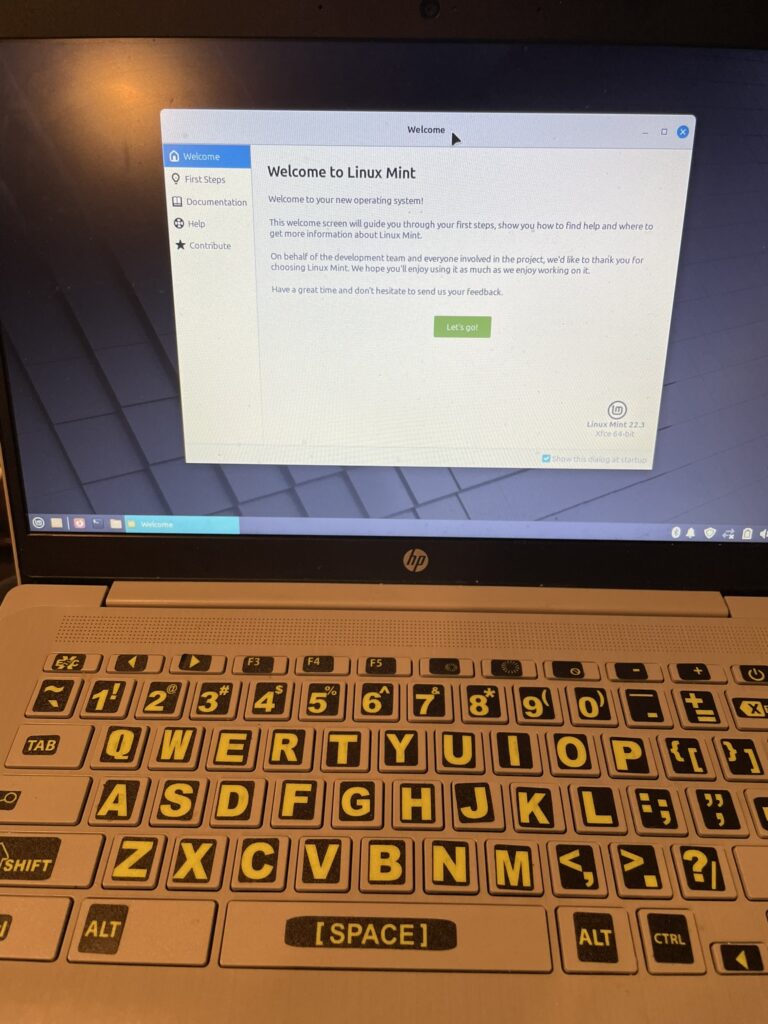
There was a Client who had asked me to install a Linux distro unto their HP Chromebook device. Initially, i wasnt sure whether it would work on their device. After some research on MrChromebox.tech website, the firmware deployed by Google can be overwritten by conducting quite a few arduous steps. i didnt realize that the devices are quite hefty.
First, download your favorite Linux Distro unto your laptop. you can then use a bunch of tools to extract the ISO file unto a USB device with BalenaEtcher, Rufus or even unetbootin. The command dd will work if you are on linux.
Second, you will need to acquire some tools such as cross-hair screwdriver to unscrew the screws at the bottom of the device prior to opening up the keyboard on top. Since these things are so well-built, it was challenging for me to pry open the top keyboard since my muscles were lacking. Once that task is completed, we can then follow the instructions below.
1) HOLD ESC — Refresh(F2) — Power
2) PRESS CTRL-D
3) Enter
4) Magically, You are now in developer mode
5) Log in using existing Google Acct, once you are able to see the screen to allow you to log in.
5a) wait for the account to connect to your Google Cloud application, and wait for everything to get be cleared.
6) YOU MUST CONNECTED to your Local ROUTER/NETWORK before TURNING OFF.
7) Power Down device.
8) Open up the top keyboard since its already pry open, i hope.
9) remove the plastic Cover covering the battery cords connected to the MOBO.
10) Unplug the Battery Cord to the connector which connected to the MOBO.
11) NOW plug in ONLY the AC power cord from Wall to the machine to disable Write-Protect.
11a) I had some issues here for 30 mins. I got a strange message saying insufficient Power. Now, realizing that i didnt have sufficient electricity. I then plugged in 55W power Brick (USB TYPE C) to this device.
12) Booted back unto the Google W/my personal acct showing.
13) PRESS: CTRL + ALT + F2
13a) you will see a Black screen to prompt you to log in
13b) enter in: root
13c) enter in: flashrom -p internal –wp-disable
13d) enter in: reboot
14) Once you are back in google account
14a) PRESS: CTRL + ALT + F2
15) Enter in: chronos
16) cd; curl -LO https://mrchromebox.tech/firmware-util.sh && sudo bash firmware-util.sh
17) Choose 2 to install Firmware
17a) it will ask you to insert a USB device to Backup your existing Google Firmware.
18) Wait for 3-4 mins
19) Plug in your favorite Linux Distro unto a USB port
20) a REBOOT is automatically done, it will boot the USB device that you had already plugged unto one of the two ports.
This was what i had done to this client’s Device to get Linux Mint functional. I believed this process varies from device to device and whether MrChromeBox will support the Firmware made by Google. I was certainmly glad i was able to Aid this Client’s Wish to recycle this device and install a Form of Linux unto its hardware. Its actually quite fast using Intel’s GeminiLake.